
Problem Statement
You need to send special key combinations, such as Ctrl + S or Alt, to a text box or the active application in the foreground within a Power Automate Desktop flow.
Solution
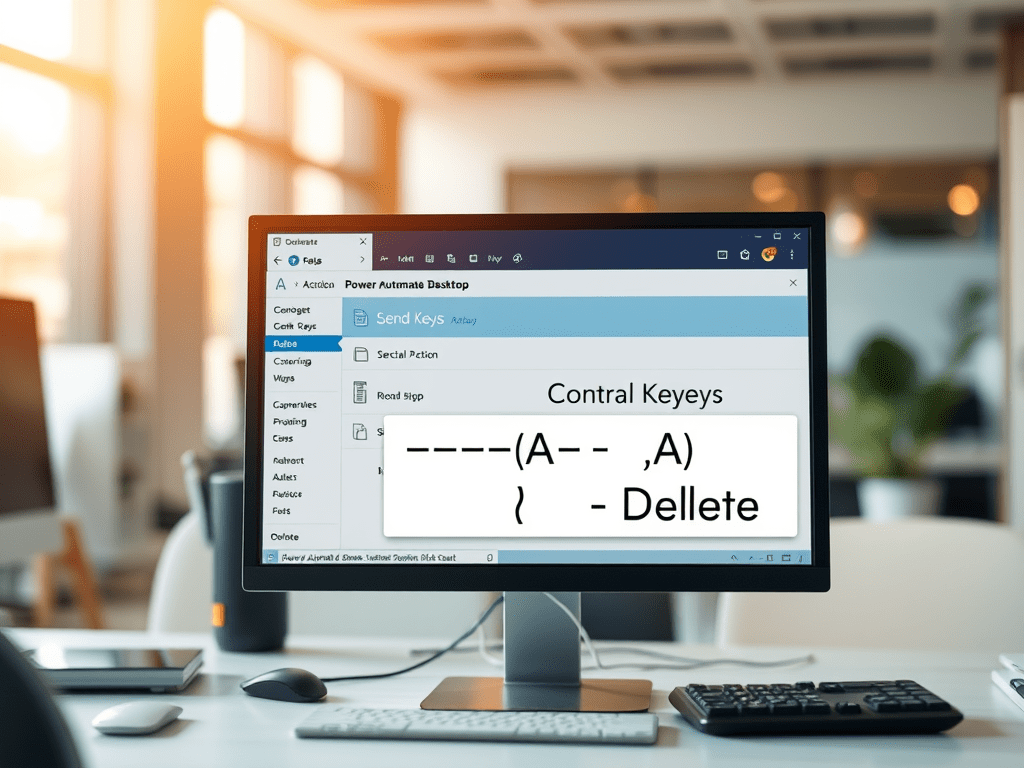
You can use the Send Keys action to do this.

{Control}({A}) {Delete}
In the example above, we demonstrate how to use the Send Keys action to perform the Ctrl + A key combination, followed by the Delete key. This is useful for selecting all text in a field and clearing it.
If your goal is simply to send a text string, you can directly type the desired text in the Text to send field. Additionally, you can use a variable instead of plain text to make your automation dynamic and adaptable, as shown in the example below.
Points to note
- Using Parentheses for Key Combinations: When sending two keys simultaneously, such as
Ctrl + AorCtrl + S, it’s important to enclose the key combination in parentheses. For example:
{Control}({A})- Adding Subsequent Keys: Any keys to be sent after the initial combination should be enclosed in separate curly braces. For instance, in the example above, the
Deletekey is sent as:
{Control}({A}){Delete}

 Ajay is a developer
Leave a reply to X Cancel reply